RECOUPREV / AI GUIDES / OCTOBER 13, 2026
How I Created a 64-Second AI Film Using Claude Code and Google Vertex AI — Complete Beginner Tutorial (2026)
A real creator case study, not just a tool roundup. Watch the 64-second animated forest film, then learn the workflow behind it: planning scenes with Claude Code, authenticating with Google Cloud CLI, generating images and clips through Vertex AI, and assembling the result. We also cover cost controls, token savings and optional n8n, Figma and Ahrefs extensions. The creator reports using Claude Code and Vertex AI; exact generation prompts and model logs were not provided.
Watch the 64-second Vertex AI + Claude Code example
This vertical animated forest film was provided by the creator, who reports producing it with Claude Code and Vertex AI. Play the example below to examine the shot composition, atmosphere and continuity.
Case study: How I made the 64-second forest film
The creator supplied a roughly 64-second vertical animated forest video featuring a hooded child and a glowing firefly, and reports producing it using Claude Code and Vertex AI. Reproduce the method by drafting a script, creating a visual reference, generating several short scenes, checking continuity, assembling the clips and mixing sound. Exact prompts, model IDs and costs were not supplied, so they are not presented as verified.
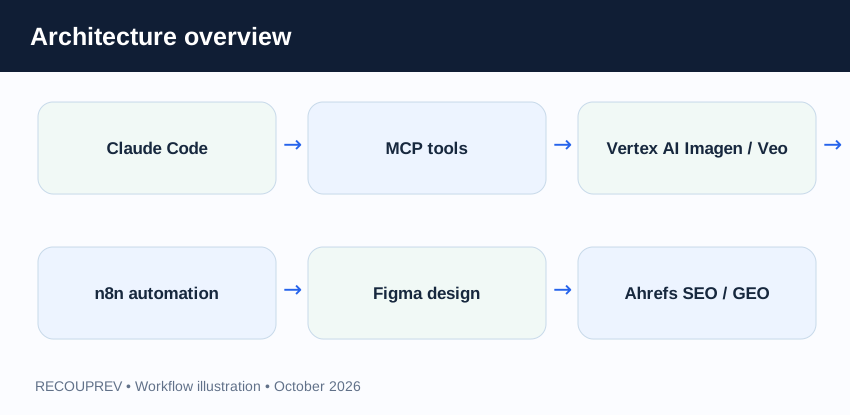
1. Architecture
Claude Code runs on a local computer or VPS. Google Cloud CLI authenticates the environment; authenticated Vertex AI REST or SDK requests perform image and video generation. n8n webhooks coordinate jobs. Figma provides layouts, while Ahrefs supports keyword research. Vertex AI does not require MCP.
2. Google Cloud trial
Eligible new Google Cloud customers may receive $300 in promotional credits for a limited trial period, commonly 90 days. Model availability, credit coverage, quotas and billing restrictions depend on the account and service. The creator reports using trial credits in this workflow; verify actual billing eligibility and set budget alerts before generating.
3. Install and authenticate
Install Claude Code from Anthropic's official documentation and Google Cloud CLI from Google's documentation. Run gcloud init, select your project, enable aiplatform.googleapis.com and storage.googleapis.com, and authenticate with Application Default Credentials. Use workload identity or a least-privilege service account on VPS. Never paste keys into a public repository.
4. Generate images with Imagen
Choose an Imagen model currently supported in your region and project. Have Claude Code create a Python script calling the documented Vertex AI API with a prompt, aspect ratio and output destination. Run it locally using Application Default Credentials. Save prompts, model versions and resulting assets to Cloud Storage. Verify the current model endpoint before running.
5. Generate videos with Veo
Plan a storyboard, write a character consistency sheet and split a minute-long film into short scenes. Have Claude Code prepare Veo generation requests using an available model. Some video endpoints return long-running operations: poll for completion and retrieve outputs from Cloud Storage. Review each clip, regenerate weak shots, and combine approved clips with FFmpeg.
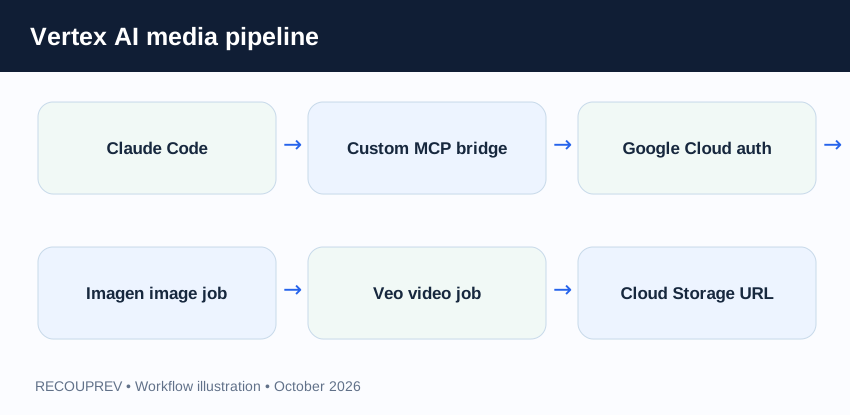
7. n8n webhook automation
Create a Webhook trigger in n8n with authentication. Claude Code or a local shell script posts a small JSON job containing jobId, media type, prompt and aspect ratio. Validate the request, queue work on the VPS, call the Vertex AI generation script, poll job status, upload results to Cloud Storage and send an approval request before publishing. Add retries, rate limits and idempotency keys to prevent duplicate charges.
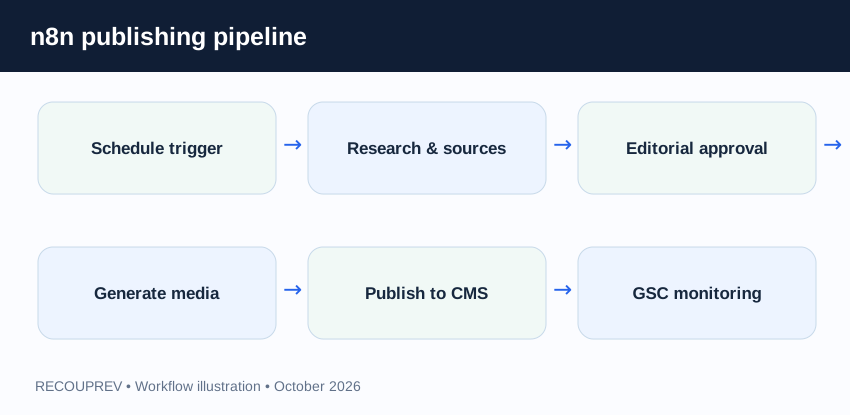
8. Reduce Claude Code token usage
Keep durable conventions in CLAUDE.md, ask one focused task at a time, read only relevant files, use grep or ripgrep instead of pasting whole repositories, summarize logs, use scripts for repetitive media operations, persist generation metadata to JSON and return concise tool output. Context compaction helps manage long sessions but does not make usage unlimited.
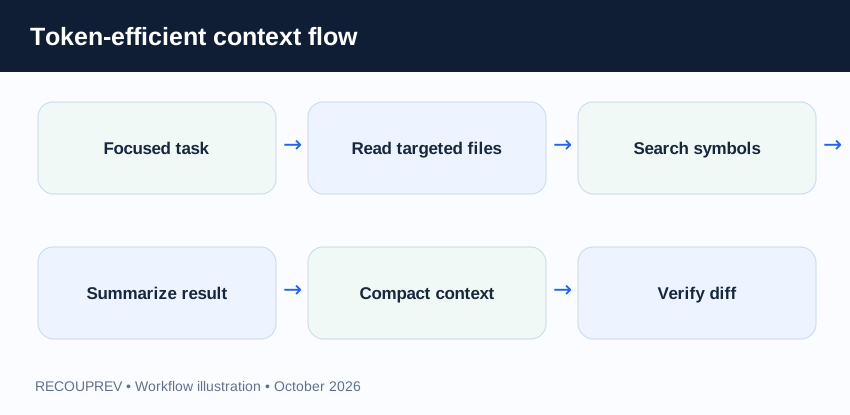
9. Design with Figma
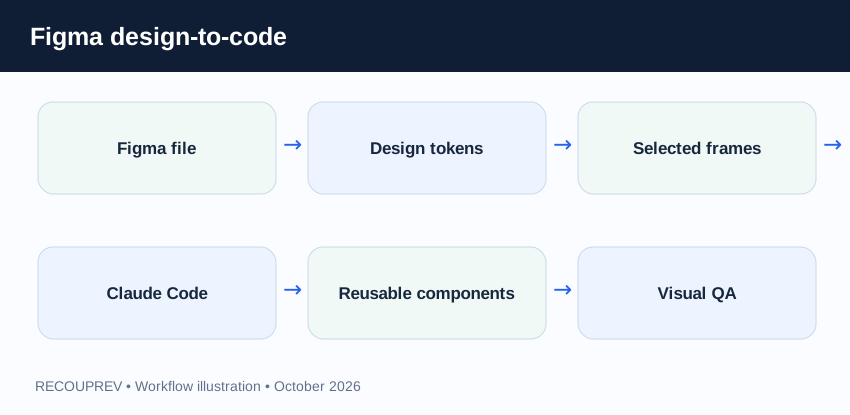
Create a responsive design system and frames in Figma, export only required assets and tokens, and ask Claude Code to implement reusable accessible components. If a Figma integration is available, pass specific file and frame references. Compare the implemented page with the design and optimize responsive image dimensions.
10. SEO and GEO with Ahrefs
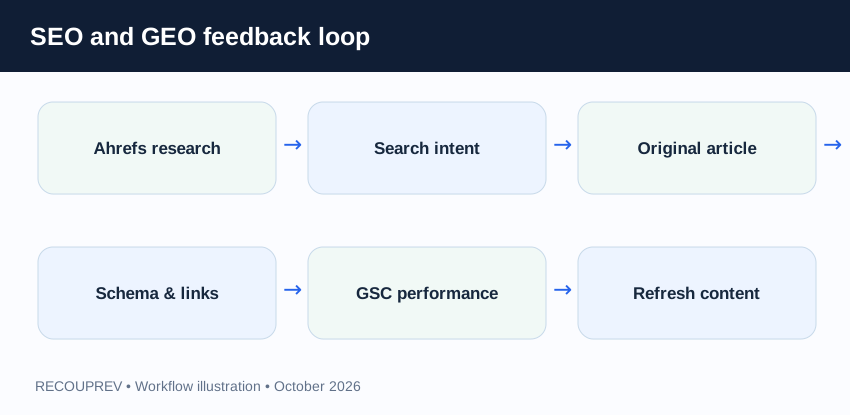
Research search intent, related questions, keyword gaps and competitor content in Ahrefs. Add original examples, accurate headings, descriptive alt text, internal links, canonical metadata, structured data where appropriate and transparent sources. GEO means improving clarity and evidence for AI discovery, not guaranteeing citations. Measure impressions and clicks in Google Search Console.
11. Security, cost and troubleshooting
Use separate dev and production projects, scoped IAM roles, secured webhooks and stored credentials. Monitor Cloud Billing, Vertex quotas and job failures. Trial credits are finite, budget alerts are not spending caps, and model access can require paid billing. Test one short scene before running a full batch.
How I configured Claude Code to use Google Vertex AI
Creator-confirmed setup: I configured Claude Code to use Vertex AI as its model provider, then used Claude Code to orchestrate my AI-film production. This is distinct from merely installing gcloud so an ordinary Claude Code session can call Google APIs. Both layers can be used together: Vertex AI supplies the Claude model, while authenticated Google Cloud scripts or APIs can access available Imagen and Veo media-generation models.
Step 1: Prepare Google Cloud
Create a Google Cloud project, enable billing as required, request access to supported Claude models in Vertex AI Model Garden, and ensure your identity has appropriate Vertex AI permissions. Install the official Google Cloud CLI, then run:
gcloud auth login\ngcloud auth application-default login\ngcloud config set project YOUR_PROJECT_ID\ngcloud services enable aiplatform.googleapis.com
Step 2: Configure Claude Code's Vertex provider
On a supported Claude Code version, follow the Google Vertex AI provider setup wizard if available. Alternatively configure the environment variables below, using the region supported by your selected Claude model:
export CLAUDE_CODE_USE_VERTEX=1\nexport CLOUD_ML_REGION=global\nexport ANTHROPIC_VERTEX_PROJECT_ID=YOUR_PROJECT_ID\nclaude
Inside Claude Code, run /status to confirm the provider. The global region is not available for every model; choose an appropriate supported region if needed. Access to Claude models through Vertex AI is billed under the applicable Google Cloud pricing and account terms.
Step 3: Generate the film
Ask Claude Code to create a scene-by-scene plan, reference prompts, Vertex AI media-generation scripts and an FFmpeg assembly pipeline. The Claude model provider configuration does not itself generate video: separate Imagen/Veo API requests, model access and billing still apply. The creator's exact model versions, commands and costs were not provided, so this is a reproducible setup outline rather than a claim to reproduce their precise run.
Official documentation: Claude Code on Google Vertex AI ↗ and Vertex AI generative media ↗.
My Hostinger VPS + n8n remote AI film production setup
Creator's workflow: I hosted my automation on a Hostinger VPS so I could access and operate the media-generation pipeline remotely at any time, without leaving my personal computer running. I used n8n to coordinate jobs, Claude Code configured through Google Vertex AI, and Claude/Sonnet for enhanced cinematic prompt writing. The pipeline supports four separate tasks: text-to-image, image-to-image, text-to-video and image-to-video. Nano Banana Pro is used for image creation and editing; video generation uses an available video-capable model such as Veo. Nano Banana Pro itself does not generate videos.
↗ Hostinger VPS hosting — view plans and setup. Hosting costs are separate from Vertex AI generation and Claude model charges. A VPS does not itself provide a GPU or free model access.
How the remote system works
- Remote request: Connect to the Hostinger VPS remotely and submit a prompt or reference image to an authenticated n8n webhook from your phone or computer. Use HTTPS and restrict access to the n8n editor; never expose it without authentication.
- Prompt enhancement: Claude Code or a Claude-powered script expands the idea into a shot list, camera movement, lighting, subject consistency and negative constraints.
- Image generation/editing: Route text-to-image or image-to-image jobs to Google's Nano Banana Pro (Gemini 3 Pro Image), subject to supported model access.
- Video generation: Route text-to-video or image-to-video requests to a supported Veo endpoint. Image-to-video uses an approved reference frame where supported.
- Asynchronous processing: The Hostinger VPS worker polls job status, retrieves outputs from Cloud Storage and records errors, duration and cost estimates.
- Delivery: n8n sends the resulting asset link for review; FFmpeg can assemble approved scenes into the final film.
Example: prompt enhancement for a cinematic scene
Expand this concept into a production-ready 8-second cinematic video prompt: a hooded child follows a glowing firefly through a misty forest. Return subject continuity, setting, lighting, camera movement, action beats, aspect ratio 9:16, and a matching reference-image prompt. Do not invent dialogue.
About “Sonnet 5”: The creator described using this name, but this article does not assert a specific public model ID without a confirmed provider model identifier. Select the Claude Sonnet model actually available in your Vertex AI project and verify it with /status.
Useful official references: Nano Banana Pro image model, n8n self-hosting, and Claude Code on Vertex AI.
Complete setup: Google Cloud billing, Claude Code, Hostinger VPS and n8n
This is the creator-reported workflow with practical commands. Replace every placeholder before running commands, and use a low-cost test before generating a full film.
1. Activate Google Cloud billing
Visit Google Cloud Free Trial ↗, sign in, create a project and complete payment-method verification. My experience: I added approximately US$10–$15 to my billing setup before my Claude/Vertex workflow worked. Depending on the billing account, an initial prepaid balance or a paid-account upgrade may be needed for restricted AI services. This is my setup experience, not a universal requirement to claim the $300 free trial. The welcome credit is eligibility-dependent and does not necessarily cover third-party Claude model inference. Verify credits, charges and whether a payment is a refundable authorization or actual balance in Cloud Billing ↗.
2. Create the project and set a budget
In Google Cloud Console, create a project, link an appropriate billing account, and configure budget alerts. Budget alerts notify you but do not automatically cap spend. Open Billing ↗ and check the account's credits and usage before starting media jobs.
3. Set up a Hostinger VPS
Provision an Ubuntu VPS at Hostinger VPS ↗. Connect over SSH with your own server IP. Use a non-root administrator for regular operations and SSH keys rather than passwords.
ssh YOUR_USER@YOUR_VPS_IP
sudo apt update && sudo apt upgrade -y
sudo apt install -y curl ca-certificates gnupg git jq ffmpeg python3 python3-venv
sudo ufw allow OpenSSH
sudo ufw enable
4. Install Google Cloud CLI
On a supported Ubuntu/Debian server, install the official Google Cloud CLI using Google's apt repository. Review the official installer ↗ if your OS differs.
sudo apt-get install -y apt-transport-https ca-certificates gnupg curl
curl -fsSL https://packages.cloud.google.com/apt/doc/apt-key.gpg | sudo gpg --dearmor -o /usr/share/keyrings/cloud.google.gpg
echo 'deb [signed-by=/usr/share/keyrings/cloud.google.gpg] https://packages.cloud.google.com/apt cloud-sdk main' | sudo tee /etc/apt/sources.list.d/google-cloud-sdk.list
sudo apt-get update
sudo apt-get install -y google-cloud-cli
gcloud version
5. Authenticate and enable APIs
For local interactive development, use gcloud login and Application Default Credentials. On an unattended VPS, prefer Workload Identity Federation or a narrowly scoped service identity rather than persisting personal credentials. Enable Vertex AI and Cloud Storage APIs.
gcloud auth login
gcloud auth application-default login
gcloud config set project YOUR_PROJECT_ID
gcloud services enable aiplatform.googleapis.com storage.googleapis.com
gcloud config get-value project
6. Configure Claude Code through Vertex AI
Install Claude Code from Anthropic's official guide ↗. Request access to supported Claude models in Vertex AI Model Garden, configure the Vertex provider environment variables and verify with /status. Claude model access may require a paid billing account and separate charges.
export CLAUDE_CODE_USE_VERTEX=1
export CLOUD_ML_REGION=global
export ANTHROPIC_VERTEX_PROJECT_ID=YOUR_PROJECT_ID
claude
# In Claude Code: /status
7. Host n8n for remote automation
Use Hostinger's n8n VPS template or follow n8n Docker installation ↗. Configure persistent storage, an encryption key, an HTTPS domain, strong authentication and protected webhook endpoints. Never expose the n8n editor or an unauthenticated shell endpoint publicly.
docker --version
docker compose version
# After following the official n8n Docker setup:
docker compose up -d
docker compose ps
8. Route four generation modes
Use an n8n webhook to receive mode, prompt and optional reference image. Claude enhances the prompt. Route text-to-image and image-to-image to an available Nano Banana Pro image endpoint; route text-to-video and image-to-video to a supported Veo model. Poll long-running jobs, store results and approve outputs before publishing. Use the current Vertex AI API docs ↗ for model-specific requests.
curl -X POST 'https://YOUR_N8N_DOMAIN/webhook/ai-media' \
  -H 'Content-Type: application/json' \
  -H 'Authorization: Bearer YOUR_TOKEN' \
  -d '{"jobId":"test-001","mode":"text-to-video","prompt":"Glowing firefly in a misty forest","aspectRatio":"9:16"}'
9. Edit, export and review costs
Assemble selected short clips with FFmpeg, check continuity, export an MP4 and upload it to public media storage. In Cloud Billing, review actual usage after each test; stop or pause automation if the spend exceeds your intended budget.
Copy-and-run setup checklist
Install Google Cloud CLI first, sign in and choose your own project ID:
gcloud init\ngcloud config set project YOUR_PROJECT_ID\ngcloud services enable aiplatform.googleapis.com storage.googleapis.com\ngcloud auth application-default login
Example n8n webhook trigger after configuring your own authentication:
curl -X POST https://YOUR_N8N_HOST/webhook/media-job -H 'Content-Type: application/json' -H 'Authorization: Bearer YOUR_TOKEN' -d '{"jobId":"scene-001","type":"video","prompt":"Misty cinematic forest","aspectRatio":"9:16"}'For production, use a short-lived token or service identity and a proper job queue; do not hard-code credentials.
Download and install every tool used in this guide
🔗 Tap any blue underlined link below to open the official download or setup page in a new tab ↗
Use the official download pages below to avoid fake installers and outdated third-party packages. Some services require accounts or paid subscriptions; Google Cloud trial credits are subject to eligibility and product restrictions.
- Claude Code: Official installation and getting started guide — command-line AI coding assistant
- Google Cloud CLI (gcloud): Download for Windows, macOS or Linux — install locally or on a VPS
- Google Cloud: Google Cloud Console and free-trial information — create a project and check billing credits
- Vertex AI: Vertex AI Console and API documentation — access supported Imagen and Veo models
- n8n: Official n8n website and Self-hosted Docker installation — workflow and webhook automation
- Figma: Official desktop downloads — interface and asset design
- Ahrefs: Official SEO platform and Ahrefs Webmaster Tools — keyword research and site audits
- FFmpeg: Official download instructions — assemble and encode generated video scenes
- Visual Studio Code: Official editor downloads — optional code editor
- Git: Official Git downloads — version control
Suggested installation order: Git and an editor → Claude Code → Google Cloud CLI → Cloud project and Vertex AI setup → FFmpeg → n8n. Figma and Ahrefs can be used through their websites.