Best GPU for ComfyUI in 2026: RTX 3090 vs 4090, Budget GPUs and Cloud Rentals
Which GPU actually runs ComfyUI well? Compare 4 GB, 8 GB, 16 GB and 24 GB VRAM choices, RTX 3090 versus 4090, and cloud rental costs for image and video models.
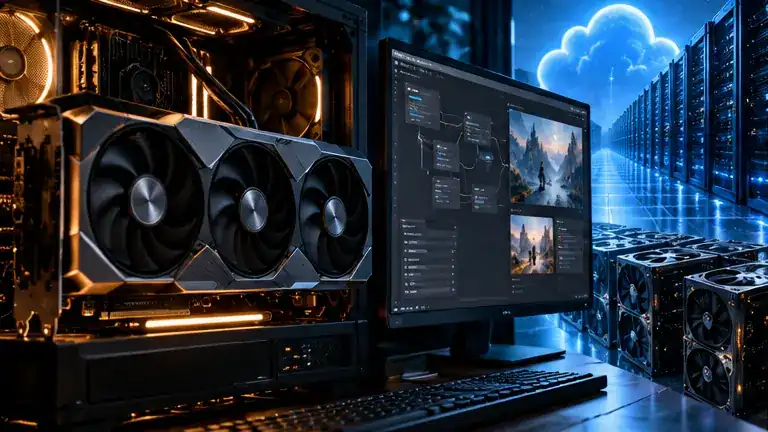
Why VRAM matters more than a gaming benchmark
ComfyUI uses node-based workflows to connect checkpoints, text encoders, image conditioning, VAEs, upscaling and diffusion sampling. Modern image or video graphs may have several large components loaded or offloaded in sequence. A GPU that performs wonderfully in games can still run out of memory when a model's weights and intermediate tensors exceed its VRAM. That is why a sensible ComfyUI upgrade begins with the precise checkpoint, pixel dimensions, frame count and number of concurrent jobs, not only a card's benchmark score.
Software changes the equation. Quantized models, CPU offloading, low-memory settings and efficient attention can make a workload fit on less memory than a simple specification sheet would suggest. They also can make an otherwise fast workflow slower. Use published model requirements and run a representative graph rather than treating any VRAM minimum as universal.
4 GB and 8 GB GPUs: suitable for learning, not every model
A 4 GB laptop GPU can run selected smaller image-generation workflows with aggressive memory management. It is not a realistic promise of effortless large-model video generation. Try modest dimensions, low batch sizes and official starter examples. Avoid combining several heavyweight ControlNet and upscaling stages in one initial graph. If memory errors occur, reduce image resolution and frame count, then check whether a low-memory model variant exists.
An 8 GB card offers more flexibility for introductory Stable Diffusion and selected optimized workflows. It remains constrained for heavy FLUX-family setups or long video processing. Because offloading can move data repeatedly between RAM and the GPU, a task that technically runs may take much longer than expected. For occasional experiments, using existing hardware and renting a bigger GPU for final output can be smarter than rushing to replace a laptop.
12 GB to 16 GB: the practical still-image workhorse
For regular still-image generation, edit workflows and some ControlNet pipelines, 12 GB or 16 GB is a substantial improvement. You can try higher resolutions, larger checkpoints and more complex node trees without immediately depending on cloud compute. But video models can still exceed these limits, and the VRAM required for inference is not identical to that required for training or fine-tuning.
Before buying, compare system RAM, PCIe bandwidth, driver support, case cooling and electricity usage. Using Windows plus WSL2 is practical if the appropriate NVIDIA drivers and CUDA-compatible PyTorch packages are installed, but it adds environment-specific troubleshooting. Keep models and outputs in a persistent, organized directory, update custom nodes cautiously and test an official minimal graph after upgrades.
RTX 3090 versus RTX 4090: why 24 GB is a sweet spot
The GeForce RTX 3090 and RTX 4090 each provide 24 GB of memory. The RTX 4090 generally delivers faster rendering on well-optimized modern kernels, while a properly tested used 3090 can offer more VRAM per currency unit than newer alternatives. Their shared 24 GB capacity enables larger single-GPU graphs to remain in memory. It still does not guarantee every emerging video model will fit, especially with multiple stages and large frame batches.
Choose the 3090 for value when a verified used card and its operating cost make sense. Choose the 4090 when daily production throughput and time saved justify the higher upfront spending. Verify power-supply capacity, power connectors, thermals, physical clearance and warranty. Heavy second-hand cards deserve a stress test before purchase. Do not assume two 24 GB cards magically combine into one 48 GB memory pool; multi-GPU support depends on the specific software and model.
Cloud GPUs: flexible, but not automatically cheaper
Platforms such as RunPod and Vast.ai offer rented GPUs with different memory capacities, pricing structures, storage options and availability. Managed services like Comfy Cloud simplify setup but often bill through model- or workflow-specific credits instead of raw compute hours. Compare total cost per successful output, not only a headline hourly rate. Include model download time, persistent-volume charges, failed generations, startup delay and periods when an idle machine is still billed.
A useful rule is to measure a month's actual usage. If the workload is a few hours of heavy video processing, rental may beat buying a premium GPU. If you produce dozens of images every day with repeatable workflows, a local card can offer predictable capacity and avoid repeated data transfer. A cloud instance can also be temporarily unavailable, interrupted or slower than its GPU name suggests if storage and networking are constrained.
Example workload-based buying decisions
For a hobbyist producing occasional thumbnails, test 8 GB hardware you already own and rent capacity only for demanding models. For a solo illustrator doing frequent image-to-image work, 12–16 GB is a reasonable place to compare value. For a creator running larger FLUX workflows or short video repeatedly, 24 GB is attractive when supported by the specific model. For a studio needing sustained high-resolution video, use measured throughput and reliability data before evaluating 48 GB or multi-GPU infrastructure.
Do not treat these examples as guaranteed minimum specifications. A checkpoint's quantization, attention implementation, resolution and batch size can move the requirement considerably. Run one benchmark graph with the same seed and settings on candidate hardware, measure speed and VRAM peak, and check that the resulting images actually meet your quality requirements.
Installing and validating ComfyUI safely
Use the official ComfyUI repository or installation guide. Avoid repackaged installers of unknown origin. On a supported NVIDIA system, verify driver and CUDA-compatible PyTorch versions before adding community nodes. Launch the app, run an official example and monitor GPU memory before importing a large third-party workflow. Keep checkpoints from trusted repositories, verify licensing, and inspect custom nodes because Python extensions can execute local code.
For reproducibility, record the ComfyUI version, extension commits, model hashes, sampler settings and inference duration. Back up working workflows before major upgrades. When a graph fails, identify the first meaningful error: missing checkpoint, tensor-shape mismatch, model incompatibility or out-of-memory. Reducing resolution is often more useful than reinstalling everything.
Bottom line: buy for a verified workload
The best ComfyUI GPU is the least expensive reliable option that runs your chosen models at your required quality and turnaround time. For many enthusiasts, that means using a current 8–16 GB GPU thoughtfully. For power users, a 24 GB RTX 3090 remains a compelling value choice, and the 4090 adds speed. For infrequent intensive video jobs, the best purchase may be no purchase at all: rent the GPU only when it is needed.
Related reading: RecoupRev's guides to ComfyUI Cloud, free AI creative workflows and image model comparisons explain how to reduce wasted credits and optimize output quality.
Reporting sources & references
These links identify the reporting or public materials on which the article is based; they do not imply our newsroom witnessed the events.
Cite this report
RecoupRev Editorial. “Best GPU for ComfyUI in 2026: RTX 3090 vs 4090, Budget GPUs and Cloud Rentals.” RecoupRev, October 14, 2026. https://recouprev.com/article/best-gpu-comfyui-2026-local-cloud-comparison